How to Display Dynamic Product Highlights in Shopify with Metaobjects
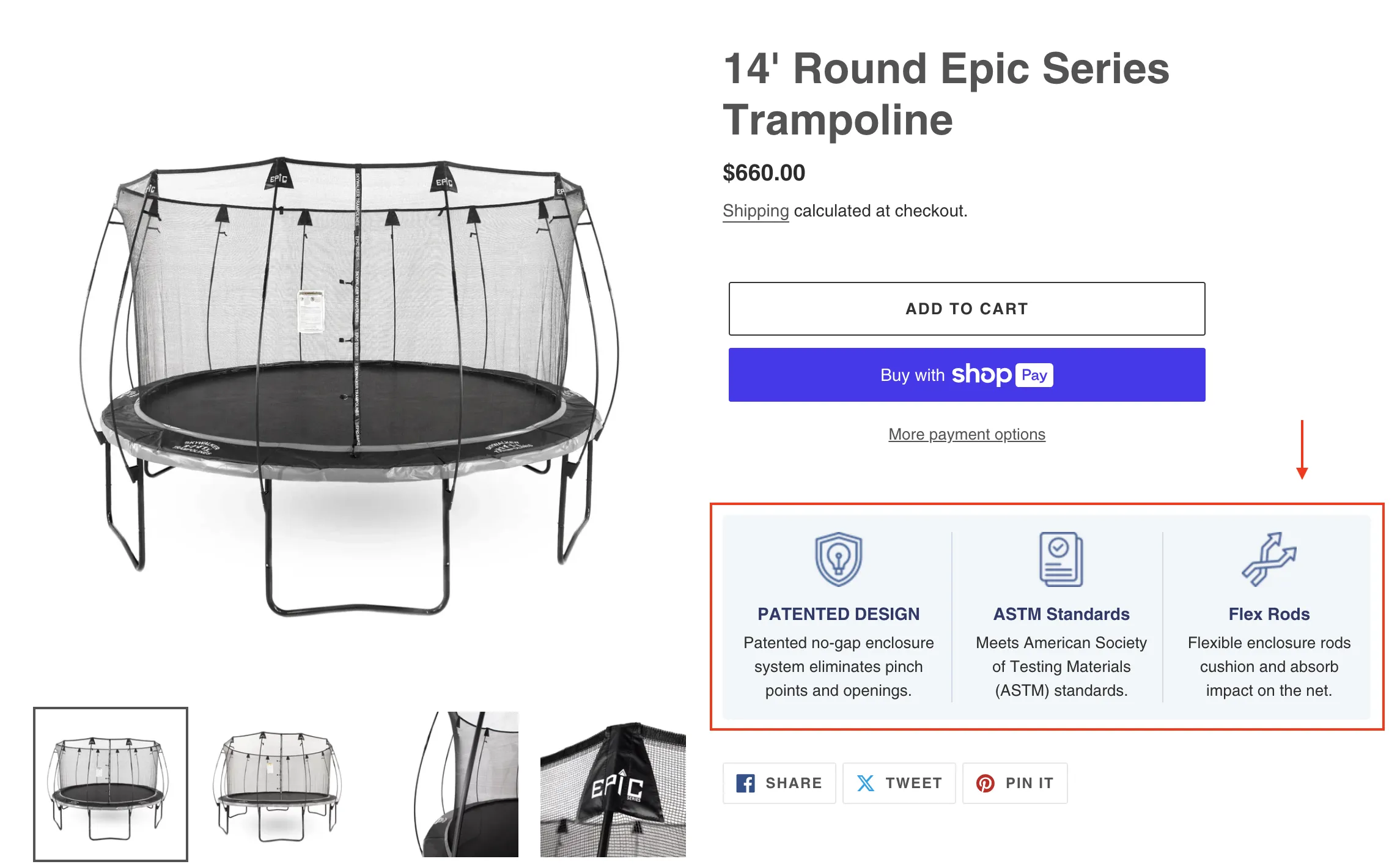
In a recent Shopify project, I needed to create dynamic “Product Highlights” on the product page template. The goal was to add customizable highlights, like unique features or benefits, that would display specific metafields such as titles, descriptions, and icons. Since each product might have different highlights, I turned to Shopify metaobjects, and linked them through product metafields to make the solution flexible and maintainable.
This solution wasn’t straightforward, though. Metaobjects are powerful, but handling them in Liquid requires a bit of strategy—particularly when only GIDs (global IDs) are returned initially instead of the actual content. Here’s a step-by-step breakdown of the code, challenges, and final solution I arrived at to display product highlights using metaobjects.
For additional background on using metaobjects and metafields, I recommend this guide from Digismoothie, which provides a helpful overview.
Setting Up the Product Highlights Metaobject
To display dynamic “Product Highlights” on each product page, I started by creating a Metaobject in Shopify, named product_highlights. This metaobject serves as a template for each highlight entry, containing the following fields:
- File Metafield (
highlight_icon): This field holds an image file for each highlight’s icon. - Single Line Text Metafield (
highlight_title): This text field stores the title for each highlight. - Rich Text Metafield (
highlight_description): This field provides space for a detailed description with rich text formatting, allowing for longer explanations if needed.
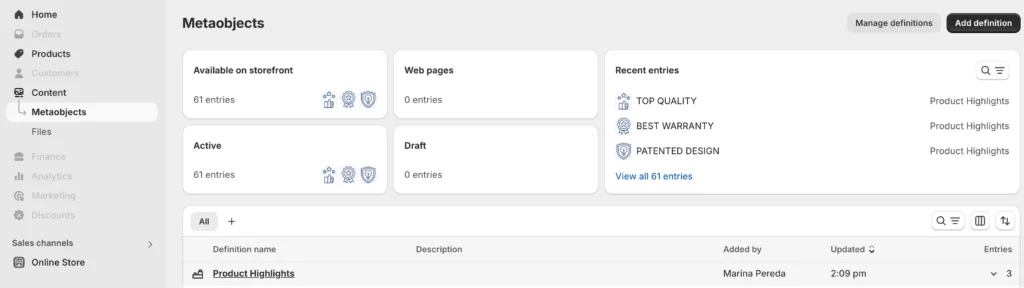
Once the product_highlights metaobject was set up, I linked it to each product using a Product Metafield. I used the “List of entries” type for this metafield, which allows each product to reference multiple entries from product_highlights. This setup lets me assign multiple highlights to a single product, each with its own icon, title, and description.
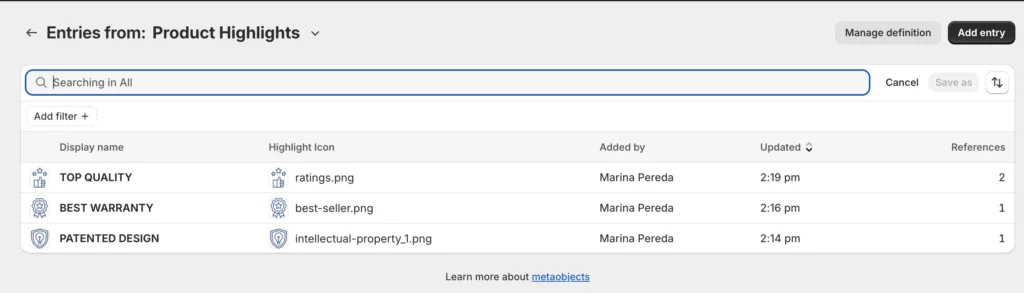
With this configuration, I had the flexibility to create customized product highlights for each product while maintaining consistency across the store. Now, let’s dive into the code implementation to render these highlights on the product page.
Code Example & Explanation
Initial Approach
Initially, I tried assigning product.metafields.custom.product_highlights to a variable and iterating over it directly. Here’s what the initial attempt looked like:
{% assign highlights_list = product.metafields.custom.product_highlights %}

{% if highlights_list != blank %}
  <div class="product-highlights">
    <div class="product-highlight-columns">
      {% for item in highlights_list %}
        <div class="product-highlight-item">
          {% if item.highlight_icon != blank %}
            <div class="product-image">
              <img src="{{ item.highlight_icon | image_url: width: 45 }}" alt="{{ item.highlight_title | escape }}">
            </div>
          {% endif %}
          {% if item.highlight_title != blank %}
            <h3>{{ item.highlight_title }}</h3>
          {% endif %}
          {% if item.highlight_description != blank %}
            <div class="product-description">
              {{ item.highlight_description }}
            </div>
          {% endif %}
        </div>
      {% endfor %}
    </div>
  </div>
{% else %}
  <p>No product highlights found.</p>
{% endif %}Issue: This code didn’t work as expected because Shopify’s Liquid syntax doesn’t allow direct access to fields within metaobjects through metafields. Instead, I needed to retrieve the value property specifically from each entry and then work with each field separately.
Final Solution
After exploring how Shopify handles metaobject references, I created a new solution that properly extracted the data I needed from each entry. Here’s the final working code:
{% assign highlights_list = product.metafields.custom.product_highlights.value %}

{% if highlights_list != blank %}
  <div class="product-highlights">
    <div class="product-highlight-columns">
      {% for highlight in highlights_list %}
        {% assign highlight_title = highlight.highlight_title.value %}
        {% assign highlight_description = highlight.highlight_description %}
        {% assign highlight_icon = highlight.highlight_icon.value %}

        <!-- Display the metaobject fields -->
        <div class="product-highlight-item">
          {% if highlight_icon %}
            <div class="product-image">
              <img src="{{ highlight_icon | image_url: width: 45 }}" alt="{{ highlight_title | escape }}">
            </div>
          {% endif %}
          {% if highlight_title %}
            <h3>{{ highlight_title }}</h3>
          {% endif %}
          {% if highlight_description %}
            <div class="product-description">
              {{ highlight_description | metafield_tag }}
            </div>
          {% endif %}
        </div>
      {% endfor %}
    </div>
  </div>
{% endif %}
Code Explanation
- Assigning Metaobject Values:
- First, I assigned
product.metafields.custom.product_highlights.valuetohighlights_list, which provides the actual content from each metaobject entry rather than just its GID.
- First, I assigned
- Looping Through Metaobject Entries:
- I used a
forloop to iterate over eachhighlightinhighlights_list. This loop allows access to each field within the metaobject entry.
- I used a
- Extracting Fields from Metaobjects:
- For each entry, I assigned values for
highlight_title,highlight_description, andhighlight_iconfrom their respective fields. - Adding
.valueto fields likehighlight_titleandhighlight_iconwas essential to retrieve the actual text or image content.
- For each entry, I assigned values for
- Conditional Rendering:
- Before displaying each field, I used
ifstatements to check if the data exists, ensuring that blank fields didn’t render unnecessary HTML. - For the
highlight_icon, I used theimage_urlfilter to render the image at a specified width.
- Before displaying each field, I used
- Structured HTML Output:
- Each highlight was displayed within a structured HTML block. The structure ensures that the highlights are visually consistent and easy to style for a professional appearance.
Best Practices
1. Use .value for Metaobject Fields
- When working with fields in metaobjects, always add
.valueto access the actual data. Without it, Liquid may only recognize the field’s identifier, which doesn’t display any content.
2. Implement Conditional Checks
- Use
ifstatements to confirm that fields are not empty before rendering them. This prevents blank sections from appearing on the page if a product doesn’t have certain highlight details.
3. Optimize for Flexibility
- By storing highlights in metaobjects and linking them with product metafields, it becomes much easier to update, add, or remove highlights without modifying the product template directly.
4. Keep HTML Clean and Structured
- Structuring HTML properly and using classes makes it easier to style later on. Clear, organized HTML also improves readability and maintainability.
Common Pitfalls to Avoid
- Forgetting
.value: Omitting.valuewhen accessing metaobject fields is a common mistake. Always check your fields carefully to ensure you’re using.valuewhere needed. - Assuming Data Exists: Without conditional checks, you might render empty elements that could affect your page layout. Always validate fields before rendering.
- Complex Field Nesting: Metaobjects are powerful but can be tricky with complex field nesting. Keep your field structure straightforward to avoid unnecessary complications.
Why to use Metafields
Using metaobjects for dynamic content in Shopify opens up new possibilities for flexibility and customization. Now that you’ve seen how to display product highlights with metaobjects, try implementing this solution on your product pages for a more dynamic, tailored user experience. For further reading, check out Shopify’s official documentation on Metaobjects and explore additional use cases for metaobjects and metafields in your store.