Style Specific Product Tags in Shopify Product Pages
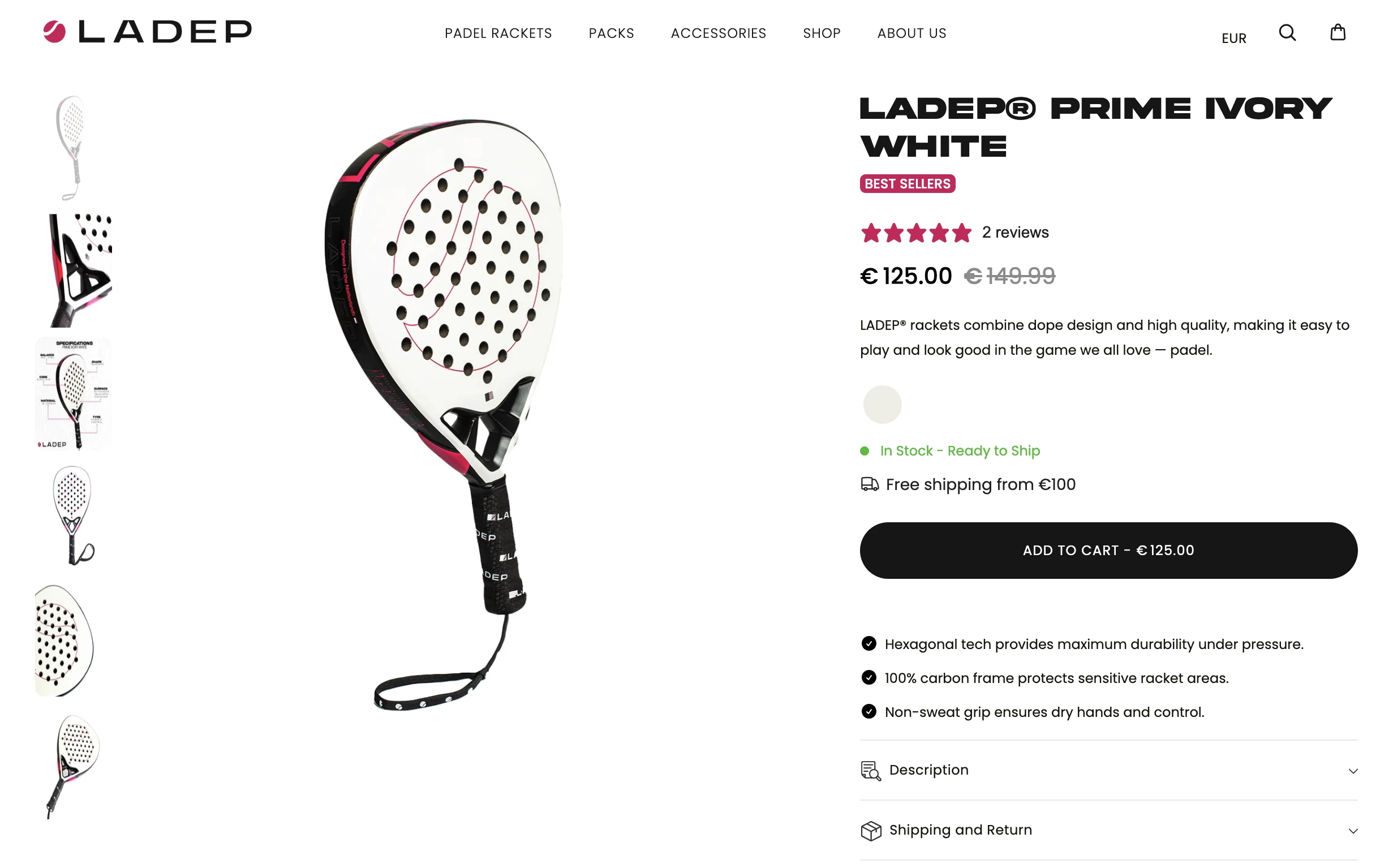
I had a client request for a Padel store in the Netherlands. They needed to get and highlight specific product tags from the back-end, on the product page front-end —but not all tags. The focus was on just “new in,” “best sellers,” and “sale”—key tags that help customers identify featured products at a glance.
The challenge was to ensure only these specific tags were styled and displayed prominently while ignoring all others. Using Shopify’s Liquid language, I implemented a solution that checks for these tags, applies conditional logic, and outputs styled HTML for the tags dynamically. Let me walk you through the solution.
Code Example & Explanation
Here’s the complete code I used to dynamically style the specific product tags:
Liquid Code:
<!-- PRODUCT TAGS -->
{% assign has_best_sellers_tag = false %}
{% assign has_sale_tag = false %}
{% assign has_new_in_tag = false %}

{% for tag in product.tags %}
    {% if tag == "best sellers" %}
        {% assign has_best_sellers_tag = true %}
    {% elsif tag == "sale" %}
        {% assign has_sale_tag = true %}
    {% elsif tag == "new in" %}
        {% assign has_new_in_tag = true %}
    {% endif %}
{% endfor %}

{% if has_best_sellers_tag or has_sale_tag or has_new_in_tag %}
    <div class="product-tags">
        {% if has_best_sellers_tag %}
            <span class="product-tag tag-best-sellers">best sellers</span>
        {% endif %}

        {% if has_new_in_tag %}
            <span class="product-tag tag-new-in">new in</span>
        {% endif %}

        {% if has_sale_tag %}
            <span class="product-tag tag-sale">sale</span>
        {% endif %}
    </div>
{% endif %}
Code Breakdown:
- Initialize Variables:
- At the start of the code, I created three boolean variables:
has_best_sellers_tag,has_sale_tag, andhas_new_in_tag, all set tofalse. These act as flags to check if the product contains the desired tags.
- At the start of the code, I created three boolean variables:
- Loop Through Product Tags:
- Using a
forloop, I iterated throughproduct.tags. For each tag, I checked if it matched “best sellers,” “sale,” or “new in” usingifandelsifconditions. When a match was found, the corresponding variable was updated totrue.
- Using a
- Conditional Rendering:
- After the loop, I checked if any of the variables were
true. If at least one of the tags was present, the code rendered adivelement with a class ofproduct-tags.
- After the loop, I checked if any of the variables were
- Output Specific Tags:
- Inside the
div, I usedifstatements to check each flag and render its associated tag with specific HTML and CSS classes:"best sellers"renders as<span class="product-tag tag-best-sellers">best sellers</span>."new in"renders as<span class="product-tag tag-new-in">new in</span>."sale"renders as<span class="product-tag tag-sale">sale</span>.
- Inside the
This approach ensures that only the specified tags are styled and displayed, keeping the output clean and relevant.
Styling the Tags with CSS
To make the tags visually distinct, I added custom CSS for each tag. Here’s an example:
.product-tags {
  display: flex;
  gap: 10px;
  margin-top: 10px;
}

.product-tag {
  padding: 5px 10px;
  border-radius: 5px;
  font-size: 0.9rem;
  font-weight: bold;
  text-transform: uppercase;
}

.tag-best-sellers {
  background-color: #ffeb3b; /* Yellow */
  color: #333;
}

.tag-new-in {
  background-color: #4caf50; /* Green */
  color: white;
}

.tag-sale {
  background-color: #f44336; /* Red */
  color: white;
}
Explanation:
- Flexbox for Layout:
- The
.product-tagsclass usesdisplay: flexto arrange tags horizontally with equal spacing.
- The
- Individual Tag Styling:
- Each tag class (
tag-best-sellers,tag-new-in, andtag-sale) has unique background and text colors to differentiate them.
- Each tag class (
- Reusability:
- By assigning specific classes to each tag, this setup ensures easy maintenance and updates for future styling changes.
Best Practices
1. Use Conditional Logic for Precision
- By looping through
product.tagsand checking for specific tag names, you can ensure that only the desired tags are highlighted, keeping your product page clean and focused.
2. Optimize for Maintainability
- Use CSS classes to style tags rather than hardcoding styles in Liquid. This keeps the code modular and easy to update.
3. Avoid Hardcoding Tags in Multiple Places
- Define the tags you want to check in a centralized part of your Liquid code, or consider using a metafield for tag control if the list changes frequently.
4. Test Across Products
- Ensure that your logic works across all products, including those with no tags or unrelated tags, to avoid rendering unnecessary empty containers.
Common Pitfalls to Avoid
- Case Sensitivity:
- Shopify tags are case-sensitive. Ensure your tag checks match the exact spelling and capitalization of the tags in your store.
- Empty Containers:
- Always include conditional checks before rendering HTML to avoid displaying empty containers or unnecessary whitespace.
- Overloading CSS:
- Avoid writing overly complex CSS rules for tags. Keep styles simple and focused on enhancing usability.
Call to Action
Using Shopify’s Liquid language to dynamically highlight specific product tags is a simple yet effective way to enhance product pages and improve customer experience. Whether you’re highlighting new arrivals, best sellers, or sale items, this approach is flexible and easy to maintain.
Try this solution on your Shopify store and let me know how it works for you! For more tips on customizing Shopify themes, check out Shopify’s Liquid Documentation or reach out in the comments with your questions.